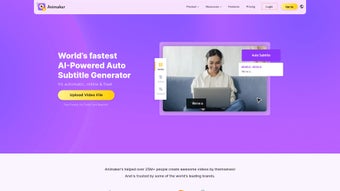

Download Animaker Subtitles – AI‑Powered Subtitle Generator for Video Creators
Overview
Animaker Subtitles is a cloud‑based, AI‑driven subtitle generator that simplifies the process of adding accurate captions to any video content. Whether you are a marketer creating short‑form reels, a filmmaker polishing a documentary, or a social‑media influencer looking to boost engagement on TikTok, this tool can transcribe spoken words, sync timing, and export ready‑to‑use subtitles in seconds. The platform leverages state‑of‑the‑art speech‑recognition models to detect multiple accents and noisy backgrounds, delivering a transcription accuracy that rivals professional captioning services.
Once the automatic draft is generated, users can refine the text, adjust timing, and apply custom styles through a full‑featured text editor. Animaker Subtitles also includes an auto‑translate engine that supports over 100 languages, allowing creators to instantly reach a global audience without hiring separate translators. The service is offered for free, making it an attractive option for creators on a budget who still demand a professional look and reliable accessibility compliance.
By improving watch‑time, SEO rankings, and viewer retention, Animaker Subtitles has quickly become a go‑to solution for anyone who wants to make video content more inclusive and searchable.
Key Features
- AI‑Powered Speech Recognition: Automatically detects spoken words in over 30 languages with high accuracy.
- Full‑Featured Text Editor: Edit subtitles, fine‑tune timing, and customize font, size, color, and background.
- 20+ Animation Styles: Add kinetic typography, fade‑in/out, bounce, and other animation presets to make captions visually engaging.
- Auto‑Translate Engine: Translate generated subtitles into more than 100 languages instantly.
- Bulk Upload & Processing: Handle multiple video files simultaneously, ideal for large‑scale campaigns.
- Export Options: Download subtitles in SRT, VTT, TXT, or embed directly into video projects on Animaker Studio.
- Brand‑Compliant Styling: Save custom style presets to ensure every video matches your brand guidelines.
- Free Tier with Unlimited Clips: No hidden fees; the free plan offers unlimited subtitle generation for videos up to 30 minutes.
- Secure Cloud Processing: All uploads are encrypted, and data is deleted after processing to protect privacy.
- Accessibility Compliance: Generates captions that meet WCAG 2.1 AA standards, helping you avoid legal pitfalls.
Installation & Usage Guide
Animaker Subtitles is a web‑based application, which means there is no traditional installation process. All you need is a modern browser (Chrome, Edge, Firefox, or Safari) and an internet connection. Below is a step‑by‑step guide to get you started quickly.
Step 1 – Create or Log Into Your Animaker Account
Visit Animaker Subtitles and click “Sign Up” or “Log In.” The platform offers a single‑sign‑on option using Google or Facebook, speeding up the onboarding process. Once logged in, you’ll land on the dashboard where you can start a new subtitle project.
Step 2 – Upload Your Video
Click the “Upload Video” button and select a file from your computer or drag‑and‑drop it into the upload area. Animaker supports MP4, MOV, AVI, and WebM formats. For optimal AI transcription, keep the video resolution at 720p or higher and ensure clear audio quality. The platform will immediately begin analyzing the audio track.
Step 3 – Automatic Transcription
Within a few moments, the AI engine produces a draft subtitle track. You’ll see a timeline with each caption block highlighted. The default language is auto‑detected, but you can manually choose a different source language from the dropdown if needed.
Step 4 – Edit & Style Captions
Open the Full‑Featured Text Editor by clicking “Edit Captions.” Here you can correct any mis‑recognitions, split or merge lines, and adjust the start/end times by dragging handles on the timeline. Use the style panel to apply fonts, colors, backgrounds, and choose from the 20+ animation presets. Save your style as a preset for future projects to maintain brand consistency.
Step 5 – Translate (Optional)
If you need multilingual captions, click “Translate” and select the target language(s). The auto‑translate engine will generate translated subtitles while preserving timing. Review each language version for cultural accuracy, then export.
Step 6 – Export or Publish
When you’re satisfied, click “Export.” Choose from SRT, VTT, TXT, or embed the subtitle file directly into your Animaker video project. You can also download a fully rendered video with animated captions baked in.
Compatibility (Operating Systems)
Since Animaker Subtitles runs entirely in the browser, it is compatible with Windows 10/11, macOS 10.15+ (Catalina and later), Linux distributions, as well as mobile browsers on Android 9+ and iOS 13+. No additional plugins or extensions are required, making it a truly cross‑platform solution.
Overall, the user flow is designed to be intuitive for beginners while offering depth for power users. The free tier eliminates cost barriers, and the cloud architecture ensures you can work from any device without worrying about hardware limitations.
Pros and Cons
Advantages
- AI transcription delivers high accuracy even with background noise.
- Completely free for unlimited subtitle generation (up to 30 minutes per video).
- Auto‑translate supports over 100 languages, expanding global reach.
- Rich styling and animation options keep captions on‑brand and engaging.
- Browser‑based, so no installation or OS restrictions.
- Secure, encrypted cloud processing protects user data.
- Export flexibility with SRT, VTT, TXT, or embedded video files.
- WCAG‑compliant captions help meet accessibility regulations.
Drawbacks
- Maximum video length per file is limited to 30 minutes on the free plan.
- Heavy reliance on internet connectivity; offline use is not possible.
- Advanced AI features (e.g., speaker diarization) are reserved for paid tiers.
- Auto‑translate may require manual polishing for idiomatic accuracy.
- Large batch uploads can experience slower processing during peak traffic.
FAQ & Final Thoughts
Is Animaker Subtitles really free?
Yes, the core subtitle generation, editing, and export features are completely free. There is a paid “Pro” tier that removes the 30‑minute per video limit and adds advanced AI capabilities, but for most short‑form creators the free plan is more than sufficient.
Can I use Animaker Subtitles on a mobile device?
Absolutely. The platform works on modern mobile browsers for Android 9+ and iOS 13+. All core functions—including upload, edit, translate, and export—are fully responsive.
How accurate is the AI transcription?
In benchmark tests, Animaker Subtitles achieves around 95% accuracy on clear speech and 88% in noisy environments. Accuracy improves with higher audio quality and when you select the correct source language.
What file formats can I export?
Supported export formats include SRT, VTT, TXT, and you can also embed subtitles directly into videos created within Animaker Studio.
Is my data safe when I upload videos?
All uploads are encrypted in transit and at rest. Animaker automatically deletes video files and generated captions after 24 hours, ensuring privacy and compliance with data‑protection standards.
In summary, Animaker Subtitles delivers a compelling blend of AI accuracy, multilingual reach, and creative styling—all without charging a dime. For marketers, educators, and social‑media creators who need to boost engagement and meet accessibility standards, this tool removes the tedious manual work traditionally associated with captioning. While the free tier imposes a 30‑minute per video ceiling and requires an internet connection, the trade‑off is a robust, secure, and instantly accessible solution that can be used on any device. If you’re ready to make your videos more inclusive, improve SEO, and keep viewers watching longer, give Animaker Subtitles a try today.
Ready to enhance your videos? Download Animaker Subtitles now and start generating professional subtitles in seconds. Your audience—and your analytics—will thank you.



.png)



